What is an on-screen AI assistant?
An on-screen AI assistant works over the apps you already have open and answers about what is on your display, instead of living in a separate chat tab. Some watch a live screen-sharing session, some take one capture each time you press a key, and some see only the screenshots you upload. Choose one by how and when it looks, what it can do, and what it costs.

Free Play: 2,000 credits, no card. Ace by Black Label.

Four kinds of on-screen AI
| Kind | How it sees your screen | Good for |
|---|---|---|
| Live screen-sharing session | Continuously, from when you start sharing until you stop | Commentary while you work through something |
| Hotkey assistant | One capture each time you ask | Quick questions in any app |
| Browser sidebar or extension | The web page open in that browser | Reading and summarizing websites |
| Chat with screenshot upload | Only the image you paste in | Occasional questions with full control of what is shared |
According to their own help pages, Microsoft’s Copilot Vision and Google’s Gemini Live work as live sessions. Ace is a hotkey assistant. This guide is written by the team that makes Ace.
Live session or one look per question
A live session suits a task where you want commentary as you go, and it lasts until you stop sharing; Google’s Gemini help notes that sharing also stops when the phone locks. A one-look assistant suits the question that pops up mid-task: it captures the screen once, answers and is done, which makes it easy to know exactly when your screen was seen. Ask yourself which pattern matches how your questions actually arrive.
What to compare before you choose
- When it looks: only when you ask, or for the length of a session.
- What it sends and to whom: the capture, your words, your voice, and which company receives them.
- Where it works: every app on the computer, one browser, or one program.
- Voice: whether you can talk to it and hear the answer, or only type.
- Acting for you: whether it can click and type, and whether that is a separate permission you can leave off.
- Platforms: Windows, Mac, Linux, phone.
- Cost after any free allowance, and what kind of account it requires.
Try the same screen task in two assistants
Copy only this sample table into a blank spreadsheet or note. Use the same zoom and window for each assistant.
| Day | Support tickets |
|---|---|
| Monday | 120 |
| Tuesday | 150 |
| Wednesday | 135 |
- Use each assistant’s normal screen workflow. Share that window or capture only the sample table.
- Ask it to quote the Monday and Tuesday counts and calculate Tuesday’s percentage increase from Monday.
- Check the output against 120, 150 and 25%. Count an answer as correct only if it quotes both cells and divides the 30-ticket increase by 120.
- Record whether you could repeat the question from the same app, how you shared the screen, and how you stopped sharing.
Where Ace fits
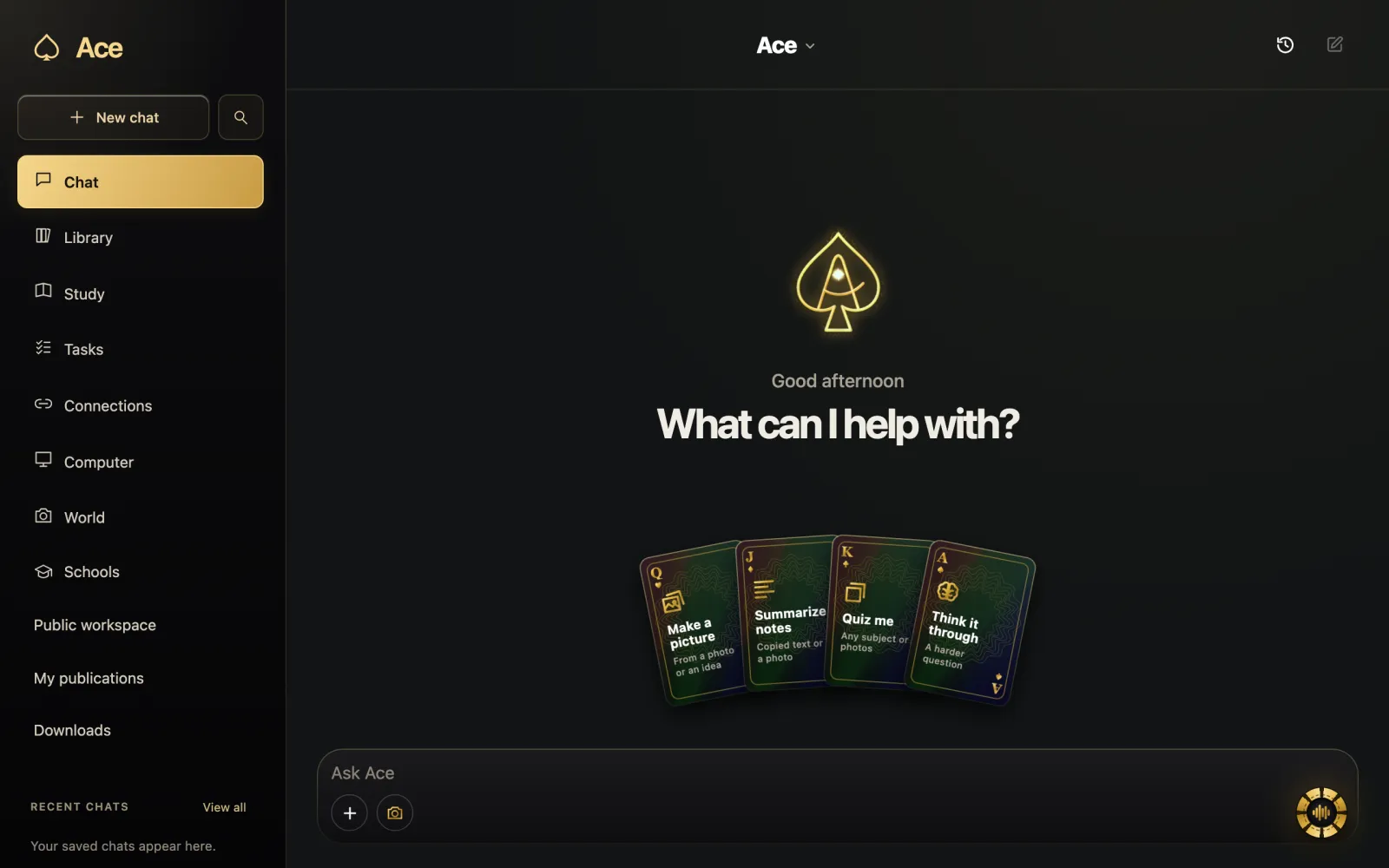
Ace is the hotkey kind. It lives in the menu bar on a Mac and waits for Ctrl + Shift on Windows; you hold the key, ask out loud or type, and it looks at the screen at that moment and answers in its own voice and in text. It works over whatever app is in front, on Windows 11 and 10, macOS 13 or later (Apple silicon or Intel), and Linux. Free Play starts with 2,000 credits and no card.
Open the Ace download for Windows, Ace download for Mac, or Ace AppImage for Linux. In your phone’s browser, Ace Mobile can answer questions about a camera view or photo. On iPhone and iPad, get Ace BL for iPhone and iPad from the App Store. See a worked chart example for desktop and phone.
Setting one up safely
- Install it from the maker’s own site or account page.
- Grant only the permissions you will use: the screen for screen questions, the microphone for voice.
- On a Mac, look at the Screen & System Audio Recording list under Privacy & Security, where the apps allowed to record the screen appear, each with its own switch.
- Before asking, close windows you would not want included and silence notifications that might pop up mid-capture.
- Learn how to stop it: end the session, or switch the permission off.
Common problems and fixes
- It cannot see anything: screen permission was not granted. On a Mac, switch the app on under Screen & System Audio Recording. If macOS leaves Ace out of that list, Ace’s Setup shows its icon beside the settings page; drag it into the list and switch it on.
- It answered about the wrong window: bring the right one to the front and close overlapping panels before asking.
- It misread a number: zoom in, ask again, and ask it to quote what it read.
- It is slow to answer: Ace’s AI is hosted, so a weak internet connection means a slow reply.
More from Ace
The full overview of how Ace helps with your screen is on tryacee.com/ai-on-screen.
Also asked
Is on-screen AI the same as screen recording?
No. Recording keeps video; a one-look assistant takes a capture for a single question. On a Mac both use the same permission, Screen & System Audio Recording, which is why an assistant asks for it.
Can an on-screen assistant click things for me?
Some can, some cannot. Microsoft’s Copilot Vision page says it may highlight parts of the screen but does not act for you. In Ace, app control is a separate operating-system permission you can leave off.
Is there an on-screen AI for Android phones?
Google’s Gemini help describes sharing your screen with Gemini Live in the Gemini app on Android. Ace Mobile takes a different approach on phones: it works from the camera or a photo.
Do I need a powerful computer?
Ace’s AI is hosted, so the answers are written on servers and every question needs an internet connection. The Mac version runs on macOS 13 or later, on Apple silicon or Intel.
What kinds of on-screen AI assistant are there?
There are four kinds. A live screen-sharing session sees your screen continuously until you stop sharing; a hotkey assistant takes one capture each time you ask; a browser sidebar or extension sees the web page open in that browser; and a chat with screenshot upload sees only the image you paste in.
What does a browser AI extension see on my screen?
The web page open in that browser. That makes a browser sidebar or extension a fit for reading and summarizing websites. For quick questions in any app, a hotkey assistant such as Ace takes one capture each time you ask and works over whatever app is in front.
Should I pick a live screen-sharing session or one look per question?
It depends on how your questions arrive. A live session, which is how Microsoft’s Copilot Vision and Google’s Gemini Live work according to their own help pages, suits commentary as you go and lasts until you stop sharing. A one-look assistant captures the screen once, answers and is done, so you know exactly when your screen was seen.
What should I compare when choosing between screen assistants?
Start with when it looks: only when you ask, or for the length of a session. Then check what it sends and to whom, including the capture, your words and your voice, where it works (every app, one browser or one program), and the cost after any free allowance, plus the kind of account it requires.
How does Ace work as an on-screen AI assistant?
Ace is the hotkey kind. It lives in the menu bar on a Mac and waits for Ctrl + Shift on Windows; you hold the key, ask out loud or type, and it answers in its own voice and in text. It works over whatever app is in front on Windows 11 and 10, macOS 13 or later, and Linux.
How do I set up an on-screen assistant safely?
Install it from the maker’s own site or account page and grant only the permissions you will use: the screen for screen questions, the microphone for voice. Before asking, close windows you would not want included and silence notifications. Learn how to stop it too: end the session, or switch the permission off.
Why is Ace slow to answer a screen question?
Ace’s AI is hosted, so a weak internet connection means a slow reply. The answers are written on servers and every question needs an internet connection, so check your connection when replies lag. A desktop installation does not mean requests are processed offline.
More questions
Deal yourself in.
More about Ace
Sources
- Get started with vision capabilities in Microsoft Copilot | Microsoft Support, Microsoft Support. Checked November 14, 2026.
- Talk naturally with Gemini Live - Android phone & tablet - Gemini Apps Help, Google Gemini Help. Checked November 14, 2026.
- Control access to screen and system audio recording on Mac - Apple Support, Apple Support. Checked November 14, 2026.